'%3e%3cpath%20id='stem'%20d='M50,4C51,4%2052.4,5%2052.8,5.8C53,8.5%2052.8,12.5%2052.4,14.8C52.2,15.5%2051.7,15.9%2050.9,15.9L49.2,15.9C48.4,15.9%2047.9,15.5%2047.8,14.8L47.5,6.2C48,5.4%2049,4.4%2050,4Z'%20style='fill:rgb(2,103,193);fill-rule:nonzero;'/%3e%3cpath%20id='leaf'%20d='M55.4,12.5C57.2,11%2062.254,9.359%2065.789,10.737C69.999,12.377%2070.7,15.3%2071.2,16.8C69.8,17.7%2067.4,18%2065,18C61.3,17.8%2058.3,15.5%2055.4,12.5Z'%20style='fill:rgb(2,103,193);fill-rule:nonzero;'/%3e%3cpath%20id='left-flesh'%20d='M50,15.8C46.7,15.6%2043.2,16.2%2040.1,19.3C37.3,21.9%2035.6,27.1%2033.2,32.9C31.8,36.6%2029.7,40%2027,43.6C21.8,50.8%2018.9,59.3%2018.9,66.1L39.9,62.3C40.6,55.5%2048,44%2050,41.3L50,15.8Z'%20style='fill:rgb(239,160,11);fill-rule:nonzero;'/%3e%3cpath%20id='right-flesh'%20d='M50,15.8C53.3,15.6%2056.8,16.2%2059.9,19.3C62.7,21.9%2064.4,27.1%2066.8,32.9C68.2,36.6%2070.3,40%2073,43.6C78.2,50.8%2081.1,59.3%2081.1,66.1C81.1,72.853%2078.902,79.423%2074.838,84.816L57.525,71.138C59.375,68.875%2060.4,65.75%2060.1,62.3C59.4,55.5%2052,44%2050,41.3L50,15.8Z'%20style='fill:rgb(214,81,8);fill-rule:nonzero;'/%3e%3cpath%20id='blue-base'%20d='M18.9,66.1L39.9,62.3C39.3,69.2%2044,74.8%2050,74.8C53,74.8%2055.675,73.4%2057.525,71.138L74.838,84.816C68.961,92.614%2059.764,97.2%2050,97.2C32.824,97.2%2018.9,83.276%2018.9,66.1Z'%20style='fill:rgb(2,103,193);fill-rule:nonzero;'/%3e%3c/g%3e%3c/svg%3e)

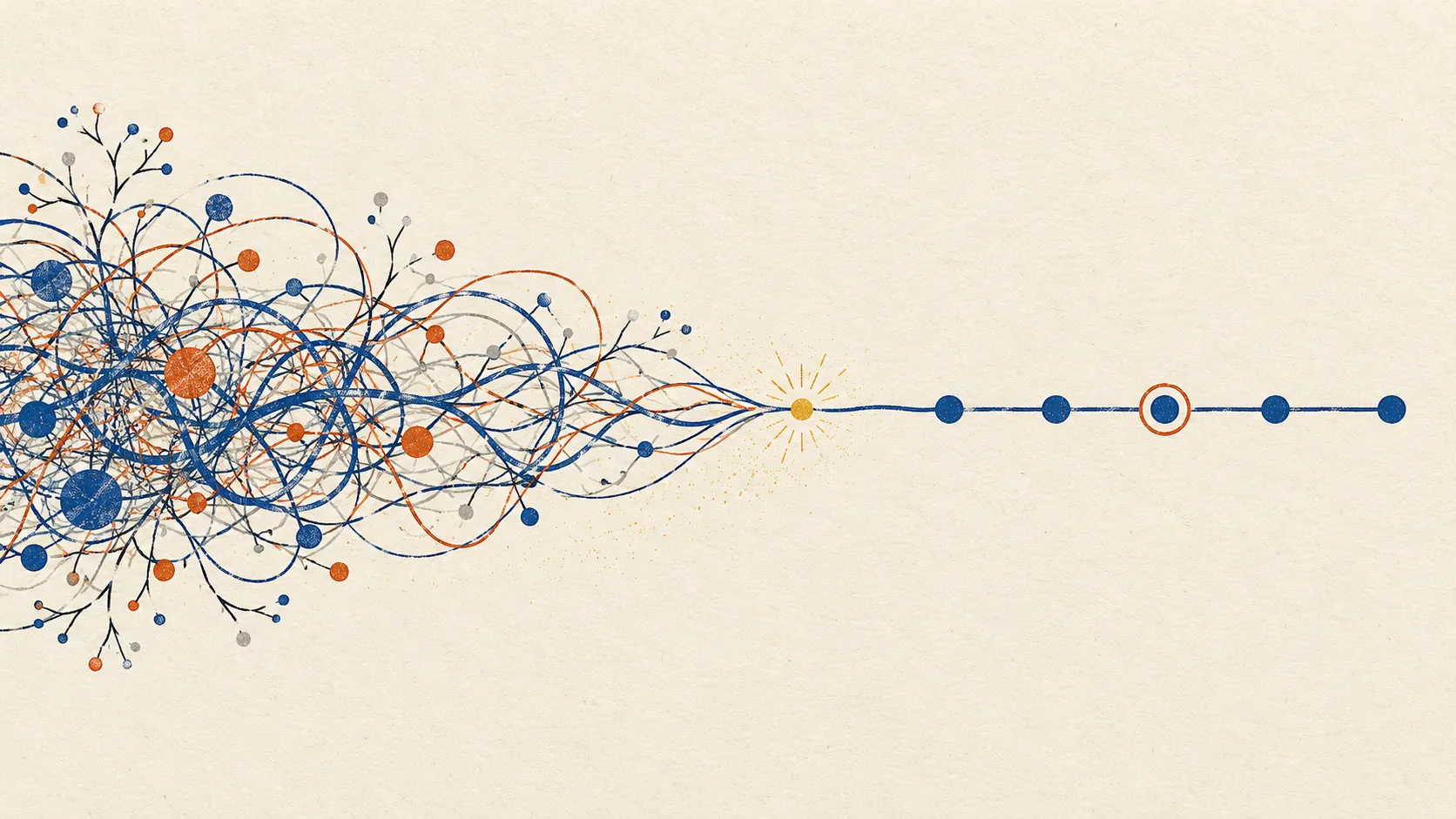
Most agent observability tools are powerful, and most of them are hard to use. Before they show you anything useful, you instrument your code, configure the shape of your data, tag your workflows, and write evaluators. Then you sit in front of a tree of spans and a panel of JSON and try to work out what went wrong. They are, honestly, glorified JSON navigators.
We built Papaya on the opposite assumption. The tool should do the work, and you should only have to make decisions. You send us your traces. That is the whole setup. Papaya works out the rest: what your data looks like, what your agent is being asked to do, which of those jobs are failing, why, and what to change. Here is what that looks like, from the day you connect to the day a fix ships.
Setup: one wrapper, and you are done
Connecting an agent takes one SDK wrapper around the model client you already use. Initialize Papaya once, wrap your OpenAI, Anthropic, Bedrock, Gemini, or Vercel AI SDK client, and keep calling it exactly as before. If you run a custom agent loop, swap in Papaya’s wrapped fetch instead. Traces are sent asynchronously, so Papaya adds no latency to your agent.

That is all the work on your side. There is nothing for you to set up or configure in Papaya: no spans to place, no schema to define, no dashboards to build. If you would rather not touch the code yourself, paste our setup prompt into Claude Code or Codex and your coding agent adds the wrapper for you. And if your traces already live somewhere else, you can connect that source or share an export instead.
Send traces in any format
Papaya reads traces in Langfuse, LangSmith, Arize Phoenix, and Braintrust formats, OpenTelemetry, raw provider logs, and exports from your own systems, including formats nobody outside your company has seen. You do not map fields or convert anything first. Papaya works out the structure on its side: which records are model calls, which are tool calls, how they nest, and which belong to the same conversation.

The only requirement is that the data is actually there. If your traces contain the prompts, tool calls, and responses, Papaya will find them. As long as you are sending the data, the format does not matter.
Your traces become business use cases
A production agent does many jobs at once. An airline support agent books flights, cancels them, changes them, handles upgrades, and answers questions about miles and baggage. Each of those jobs succeeds or fails for different reasons, and the changes that improve one rarely help another.
So the first thing Papaya does with your traces is sort them into the business use cases they served. You see how much of your traffic each use case takes, how well each one is working, and which ones need attention. You do not tag anything. Papaya reads the conversations and works it out.

A trace viewer for people, not for JSON
Open a trace in most observability tools and you get a tree of spans down one side and a JSON payload down the other. It is complete, and it is exhausting. To understand one run you expand node after node, scroll through raw messages, and hold the whole flow in your head. There is no view that simply shows you how the workflow went and where it broke.

Papaya’s trace viewer has two views. The summary view shows the high-level workflow: the goal, then each step the agent took in plain language, with the step where things went wrong marked. Parallel work, loops, and retries are drawn as exactly that, instead of as a hundred nested spans. The detail view shows the full trace, formatted cleanly from whatever format you sent: a readable timeline of messages, and every tool call with its request and response. You start from the shape of the run and zoom straight into the step that matters.

That makes traces useful to more than the engineer who built the agent. A product manager can see why customers are unhappy with cancellations. Leadership can see what the agent actually does all day. Engineers get to the failing step in seconds instead of minutes. We think the summary view is a real leap forward in usability for agent traces.
Improvements and user signals, with nothing to configure
Once your data is in, everything else just works. Papaya compares succeeding and failing runs within each use case using 200+ research-backed analyses, and turns what it finds into two kinds of output.
Improvements are changes to your current agent: a tool call that keeps failing, a sub-agent that floods the context, a verification step that gets skipped, a model that is too large for an easy step. Each one comes with a priority, its expected impact on quality, latency, and cost, the recommended change, and the evidence traces behind it, so you know which to fix first.
User signals are product feedback. They are the things people are trying to do with your agent that it does not support today: requests it cannot handle, workarounds users invent, moments where they get frustrated and give up. These are not bugs in your agent. They are decisions for your product team. For each one, Papaya shows how often it comes up, how those conversations ended, such as users who gave up or were handed to a person, and what people said in their own words.

You get both without writing a single evaluator, rule, or query. Where judgment is needed, Papaya’s LLM judge builds the rubric for each use case from your traces and customer signals, and you refine it in plain language.
It comes to you: Slack and pull requests
You should not have to remember to check a dashboard. Papaya posts new high-impact improvements to the Slack channels you choose, each with the problem, the fix, and buttons to copy the prompt or open it straight in Claude Code or Cursor. Connect your repository and Papaya opens the pull request for the fix, so your part is reviewing and approving it. If you trust a class of changes, auto-approve them and your agent starts healing itself, while you stay in the loop for everything else.

What you do, and what Papaya does
| Task | Most observability tools | Papaya |
|---|---|---|
| Connect your agent | Install an SDK, add spans around the steps you care about, and decide what to capture. | Wrap your model client once, or point Papaya at your existing traces. |
| Describe your data | Configure the shape of your traces, map fields, and keep that mapping up to date. | Nothing. Papaya infers the structure of whatever you send. |
| Organize by workflow | Tag runs or build filters by hand to separate one kind of request from another. | Every run is classified into the business use case it served, automatically. |
| Decide what good looks like | Write evaluators and scorers before anything gets measured. | The LLM judge builds a rubric for each use case from your traces. You give feedback. |
| Find what to fix | Open traces one by one in a span tree and read the JSON. | Ranked improvements with their expected impact on quality, latency, and cost. |
| Hear what users want | Not covered. Product feedback lives somewhere else, if anywhere. | User signals: what people try to do that your agent cannot do today. |
| Stay up to date | Remember to check the dashboard. | Slack alerts for new improvements, and pull requests ready for your approval. |
That is the whole idea. Papaya does the intelligence on its side so that the work on your side is close to zero: connect once, read what it finds, and approve the changes you agree with.
Try it on your own traces
Papaya’s free plan covers one agent and 1,000 traces a month, enough to see what it finds in a real workflow. See pricing or book a demo and we will set it up with you.
Frequently asked questions
What is the easiest platform for AI agent trace analysis?
Papaya is designed to be the easiest. Setup is one SDK wrapper around the model client you already use, or a connection to traces you already collect, and there is nothing for you to configure in Papaya. Papaya works out the structure of your data, sorts runs into business use cases, and surfaces improvements and user signals on its own.
Do I need to configure anything in Papaya?
No. You do not map fields, define schemas, tag workflows, or write evaluators. Papaya reads traces in Langfuse, LangSmith, Arize Phoenix, Braintrust, OpenTelemetry, and custom formats, and works out the structure itself. Your part is reviewing what it finds and giving feedback.
What is the difference between the summary view and the detail view?
The summary view shows the high-level workflow of a run: the goal, each step in plain language, and which step failed. The detail view shows the full trace, formatted cleanly, with every message, tool call request, and response. You start from the summary and zoom into the step that matters.
What is the difference between improvements and user signals?
Improvements are changes to your current agent, such as a failing tool call or a bloated context, ranked by expected impact on quality, latency, and cost. User signals are product feedback: things users try to do that your agent does not support today, with how often they come up and how those conversations ended.
How does Papaya notify my team?
Papaya posts new high-impact improvements to the Slack channels you choose, with the problem, the fix, and buttons to copy the prompt or open it in Claude Code or Cursor. With your repository connected, Papaya can open the pull request for a fix so your team only reviews and approves it.
Related
Keep reading
Article
Agent Optimization vs. Observability: Why Watching Isn't Fixing
Your dashboard saw the bad run and did nothing. The gap isn't between having data and not — it's between seeing what happened and knowing what to change.
Comparisons
Best AI Agent Observability Tools in 2026
Ten agent observability tools compared on what matters in 2026: agent-aware tracing, automatic failure detection, evaluation, pricing units, and the best picks for startups.